
Start with Part 1: Architecture and Deployment
1. Introduction
Deploying an Azure Virtual Desktop session host is only part of the challenge. Once a working environment is established, the underlying Windows golden image needs ongoing maintenance. Operating system updates, application updates, security patches, and periodic image refreshes all become part of the lifecycle.
In a traditional environment, maintaining that image can involve a considerable amount of manual effort. An administrator starts the virtual machine, checks for updates, installs available patches, manages reboots, verifies that Windows has completed servicing, and prepares the operating system for generalization. Once Sysprep finishes, the updated image must be converted into a reusable template and validated before it can be trusted for future deployments.
The process is straightforward in principle, but automating it reliably requires more than simply scheduling Windows Update.
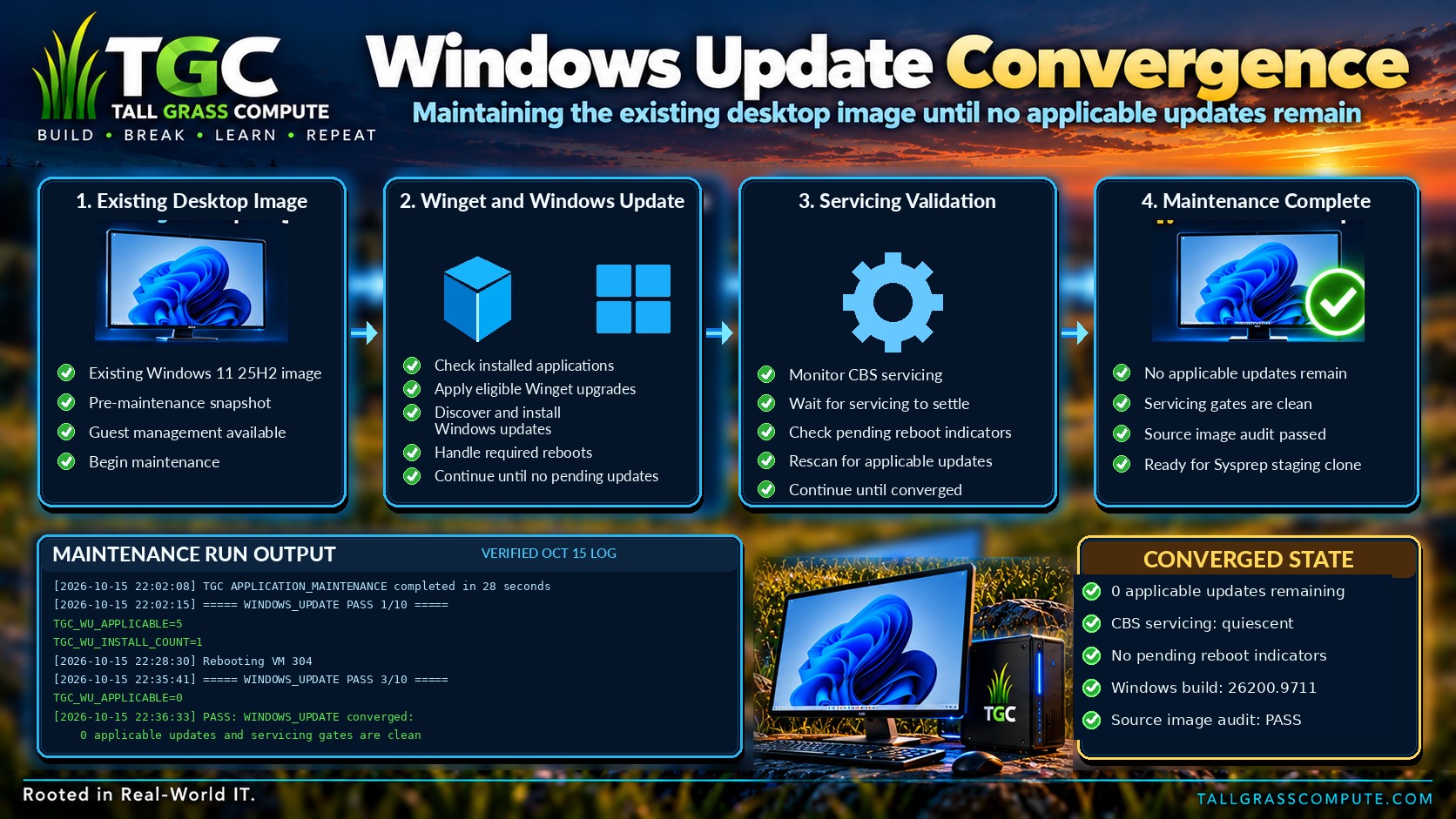
The workflow brings together application updates, Windows servicing, generalization, and template validation.
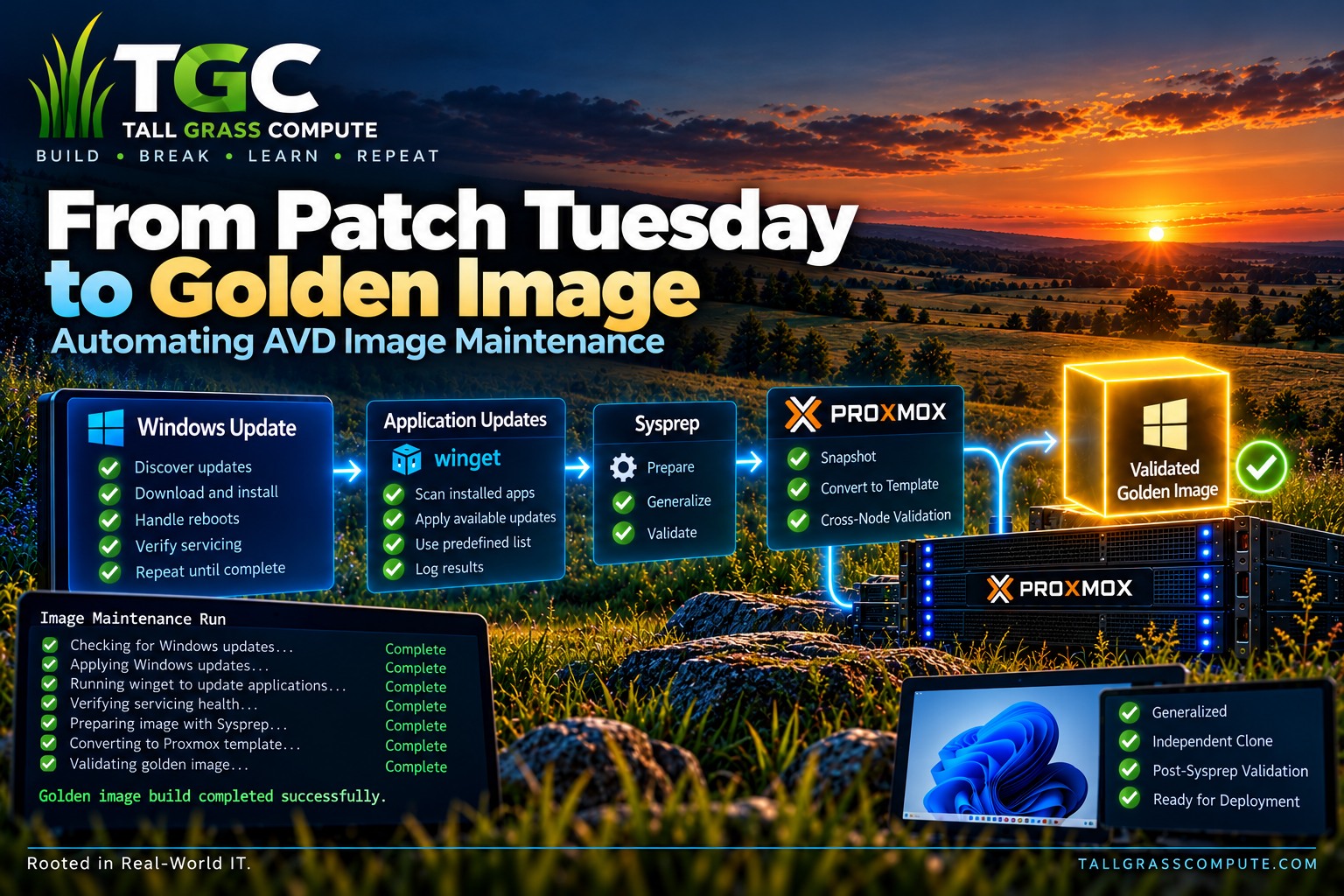
Windows servicing is not always predictable. Cumulative updates can require multiple restarts, background component servicing may continue after Windows becomes responsive, and pending operations can prevent an image from being generalized successfully. An automation workflow must recognize these conditions and respond appropriately rather than assuming that an update installation or reboot marks the end of maintenance.
For Tall Grass Compute, the goal was to take an existing Windows 11 golden image and automate the entire maintenance lifecycle—from application and operating system updates through Sysprep, Proxmox template creation, and independent validation.
The resulting workflow coordinates Windows maintenance with our existing Proxmox infrastructure, using PowerShell inside the guest operating system and Linux-based automation to orchestrate the process from outside the virtual machine.
The objective is simple: start with an existing golden image and finish with a maintained, generalized, validated replacement template—without manually interacting with Windows.
Why We Built This in Reverse
In a traditional image-management workflow, maintaining the golden image often comes before automating the deployment of systems built from it. For this project, we approached those steps in the opposite order.
In Part 1, we established our hybrid Azure Virtual Desktop environment using Proxmox, then prioritized automating session-host deployment: cloning a Windows 11 golden image, configuring the operating system, joining Active Directory, connecting to Azure Arc, and registering with Azure Virtual Desktop.
This gave us a repeatable deployment process, but one that still depended on an existing golden image requiring separate maintenance.
With deployment automation in place, we turned our attention to keeping that image current. We wanted an unattended process that could apply application and operating system updates, manage reboots, verify Windows servicing health, run Sysprep, and produce a validated Proxmox template.
Building deployment automation first also gave us a practical way to verify the result. A maintained golden image would need to do more than pass validation checks—it would ultimately need to produce a working AVD session host.
This article explores how we automated that maintenance process, completing the other half of our AVD image lifecycle.
2. Automation Architecture
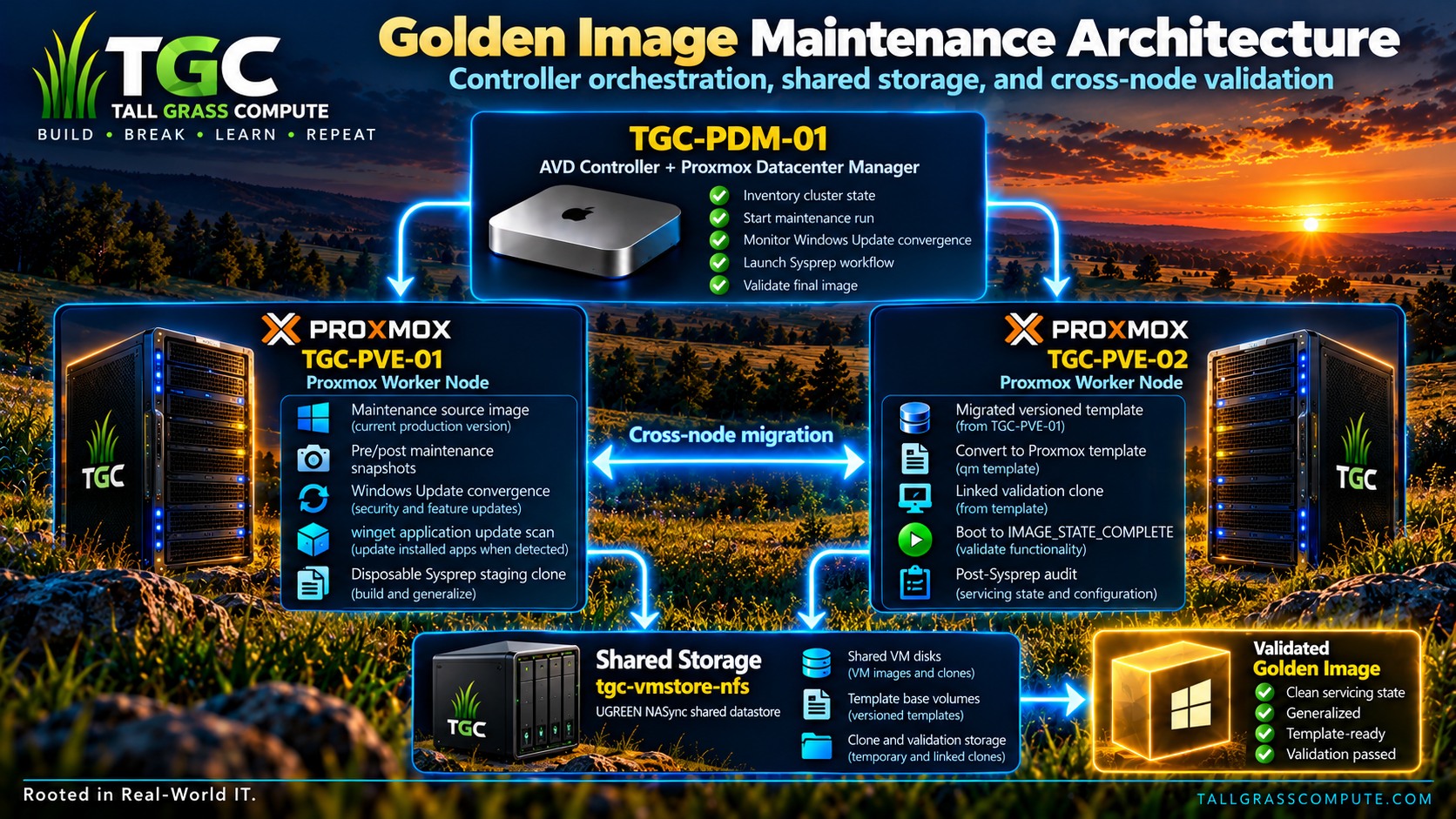
With our hybrid Azure Virtual Desktop environment already established, we did not need another management platform to automate golden-image maintenance. Instead, we extended the controller-and-worker architecture developed during the initial deployment project.
The design separates three responsibilities: coordinating the overall workflow, performing maintenance inside Windows, and managing the resulting virtual machine images in Proxmox. This allows the entire process to operate unattended while retaining control over each stage of image maintenance.
Extending Our Existing Automation Framework
At the center of the architecture is TGC-PDM-01, a Debian-based system that hosts our Tall Grass Compute AVD automation controller.
The controller serves as the central orchestration point for golden-image maintenance, coordinating the workflow across our two Proxmox VE hosts, TGC-PVE-01 and TGC-PVE-02.
Each Proxmox host runs our automation worker scripts, which manage virtual machine operations and communicate with Windows through the QEMU Guest Agent. The controller maintains the authoritative automation scripts and synchronizes them to the Proxmox hosts, ensuring that both workers operate with consistent versions of the automation logic.
When a maintenance operation begins, the controller identifies the source image, validates the environment, and delegates the work to the appropriate Proxmox host. From there, the automation coordinates application updates, Windows Update servicing and reboot cycles, image validation, Sysprep, and creation of a new golden-image template.
Maintaining Applications with Winget
Application maintenance is handled through the Windows Package Manager, Winget. Rather than maintaining a predefined list of applications to install, the workflow checks the existing image for eligible application upgrades.
When Winget identifies an applicable machine-wide update, the automation can apply it. If no eligible updates are available, the workflow continues without making unnecessary changes. We are updating applications already present in the image, not using maintenance to provision new applications.
The automation also manages the temporary administrative context needed for Winget operations and removes that context when application maintenance is complete.
Automating Windows Update
Windows Update requires more sophisticated orchestration than discovering and installing patches. An update installation can complete successfully while Windows still has pending servicing operations. A cumulative update may require multiple restarts, and Windows can initiate additional reboot activity while completing its own servicing process.
Our automation therefore treats Windows Update as a convergence process, rather than a single installation command. The workflow repeatedly evaluates the operating system until no additional updates are applicable and no pending servicing operations remain.
- Discover applicable Windows updates and select updates for installation.
- Install updates and evaluate restart requirements.
- Reboot when necessary, then reacquire the QEMU Guest Agent.
- Monitor Component-Based Servicing (CBS), pending-restart indicators, and Windows-controlled reboots.
- Repeat discovery and servicing checks until all completion criteria are satisfied.
Guest Agent availability does not automatically mean Windows servicing has finished. The worker waits for servicing conditions to stabilize before proceeding, preventing Sysprep from running while Windows is still completing an update.
Coordinating Windows Through the QEMU Guest Agent
The QEMU Guest Agent provides the communication path between our Linux worker and Windows. PowerShell 7 provides the Windows-side execution environment for maintenance and validation, while the Linux worker manages the larger lifecycle: timeouts, guest connectivity, reboots, shutdowns, and progression between stages.
Shared Storage and Proxmox Image Management
Virtual machines reside on an NVMe-backed storage pool in our UGREEN NASync DXP2800, exported to both Proxmox nodes over NFS. QCOW2 disks remain accessible from either node, allowing the generalized image to move between Proxmox hosts without a separate full-disk migration between local datastores.
Preserving the Source and Validating the Template
The workflow creates a pre-maintenance snapshot, performs Winget and Windows Update operations, audits the updated Windows source, and creates a post-maintenance snapshot. It then produces a separate full clone for Sysprep, preserving the maintained source for later image builds.
Following Sysprep and template conversion, the worker creates a disposable linked clone and performs an independent post-Sysprep audit. The controller reports success only after this validation passes.
The full lifecycle is: preflight → pre-maintenance snapshot → Winget application updates → Windows Update convergence → source audit → post-maintenance snapshot → full clone → Sysprep → template conversion → linked-clone validation.
3. Automating Image Maintenance
With the automation framework in place, the next challenge was coordinating maintenance inside Windows without requiring an administrator to log on to the virtual machine. The starting point is an existing Windows 11 maintenance source already configured for our AVD environment. Rather than rebuilding it each month, we maintain that image and use it to produce a new deployment template.
Preparing the Maintenance Source
The automation begins with preflight checks, confirming source availability and adequate storage capacity for snapshots and the later full clone. It creates a pre-maintenance snapshot covering the operating system, EFI, and virtual TPM disks before any updates are applied.
Updating Existing Applications with Winget
The first maintenance operation uses Winget to discover eligible upgrades for applications already present in Windows. It does not install a predefined software catalog. The automation establishes a temporary administrative context, evaluates machine-wide upgrades, applies them where eligible, and removes the temporary account and profile afterward.
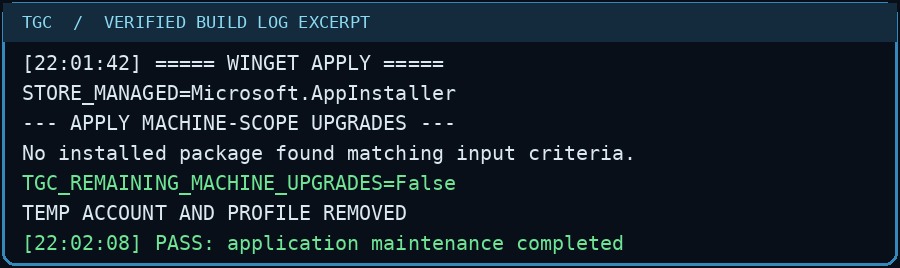
In our October 15 run, the Winget stage completed in approximately 28 seconds. No eligible machine-wide upgrades were installed. Winget identified a Store-managed App Installer component, but the machine-scope upgrade check reported no remaining applicable upgrades.
The actual build log makes the outcome explicit: application maintenance passed without forcing a software change.
Windows Update: More Than Installing Patches
The most demanding maintenance stage is determining when Windows has genuinely finished servicing. A cumulative update may succeed but still require reboots, CBS work, or pending file operations. Attempting generalization too early risks a failed Sysprep operation.
Our worker therefore uses repeated update scans and servicing gates rather than a fixed sleep interval or a predetermined number of restarts.
Discovering and Installing Updates
The first October 15 scan identified five applicable updates: the Malicious Software Removal Tool (KB890830), Defender platform update (KB4052623), PowerShell 7.6.7, the October cumulative security update (KB5127648), and a .NET Framework security update (KB5127690). The workflow explicitly selected the cumulative update for installation first.
The initial discovery captures both the build number and the full set of updates Windows considered applicable.
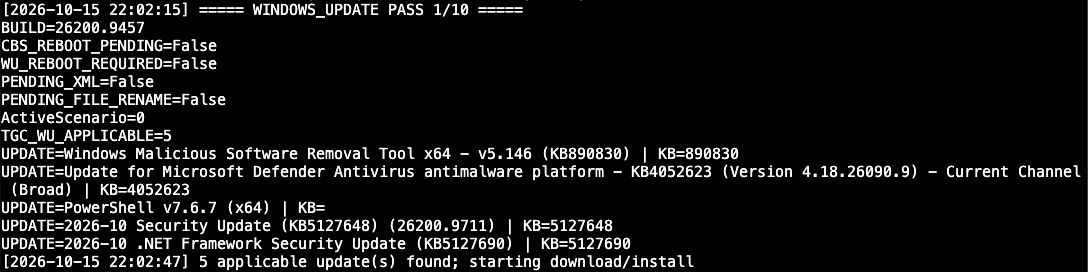
The cumulative update installation succeeded and required a restart. Its successful return code was not treated as permission to proceed immediately to Sysprep.
Managing Reboots and Windows Servicing
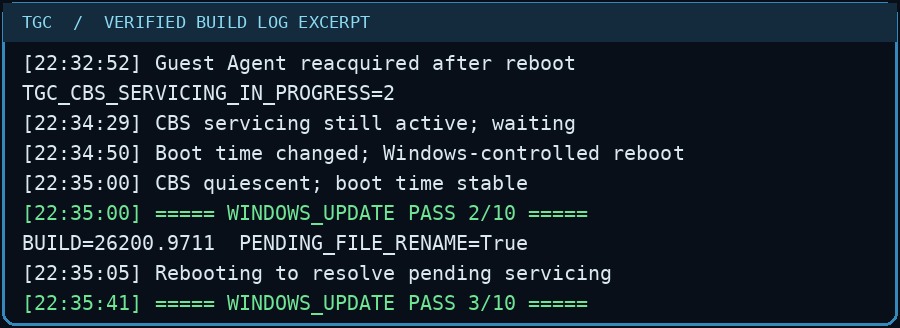
The Linux worker rebooted Windows, waited for the guest agent to return, and then checked the Windows servicing state. CBS remained active after the first reboot. Windows subsequently performed another restart of its own, which the worker detected through a change in the system boot time.
A second update pass showed the new Windows build but also found a pending file-rename operation. The automation initiated another reboot and continued monitoring until servicing settled.
The reboot sequence illustrates the value of servicing-state awareness rather than fixed reboot counts.
Knowing When Windows Update Is Finished
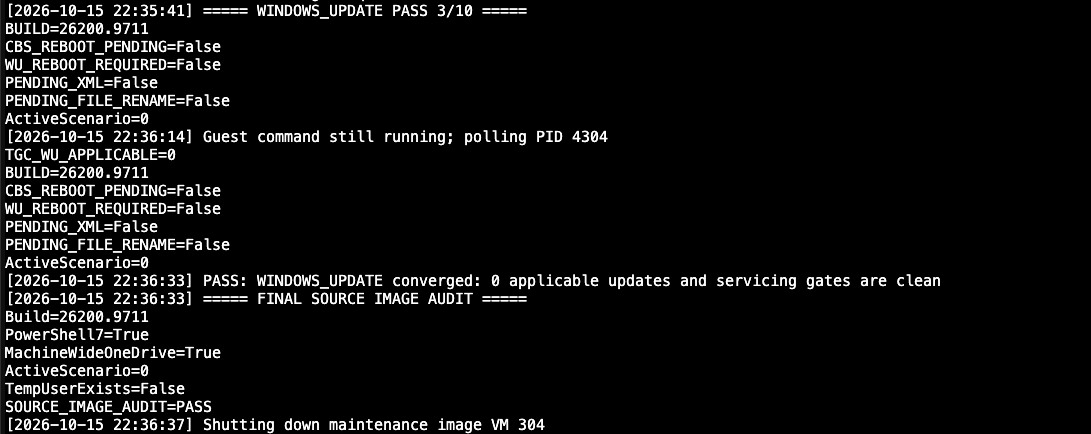
On the third pass, Windows Update reported zero remaining applicable updates and the servicing checks were clean. The source advanced from build 26200.9457 to 26200.9711.
Five updates had been discovered initially, but the log individually confirms installation of the cumulative update. The later zero-applicable result confirms that Windows Update no longer considered any updates necessary under the same scan criteria; it does not prove that every originally discovered update was separately installed.
Validating the Maintained Source
The final source audit confirmed the expected Windows build, PowerShell 7, machine-wide OneDrive, and removal of the temporary maintenance account. The worker shut down the source and created its post-maintenance snapshot, preserving the updated image before any generalization work.
The completed scan and final source audit are shown together below. Both results matter: Windows Update reported no applicable patches, and the expected components were present before the source was shut down.
4. From Maintained Image to Golden-Image Template
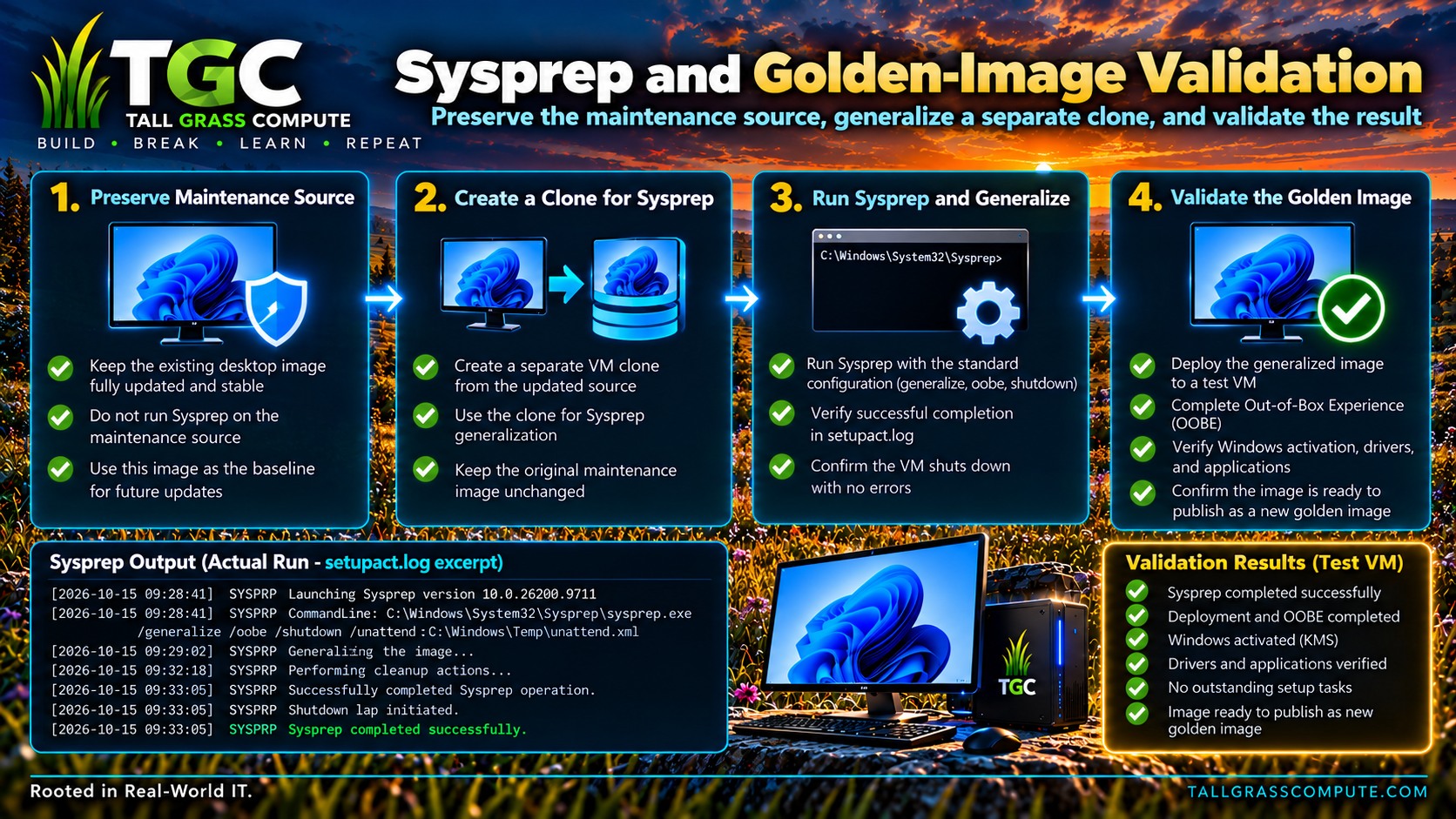
The updated Windows source was current and healthy, but not yet ready to serve as the foundation for new AVD session hosts. The next stage was to generalize a separate staging clone, convert it into a reusable template, and independently verify that the image could initialize.
Protecting the Maintained Source
Rather than Sysprep the maintained source itself, the automation creates a separate full clone after the post-maintenance snapshot. This deliberately separates a reusable, updated maintenance image from a generalized image intended for deployment. The source remains intact for subsequent maintenance cycles.
The post-maintenance checkpoint marks the boundary between servicing and generalization.

Preparing for and Running Sysprep
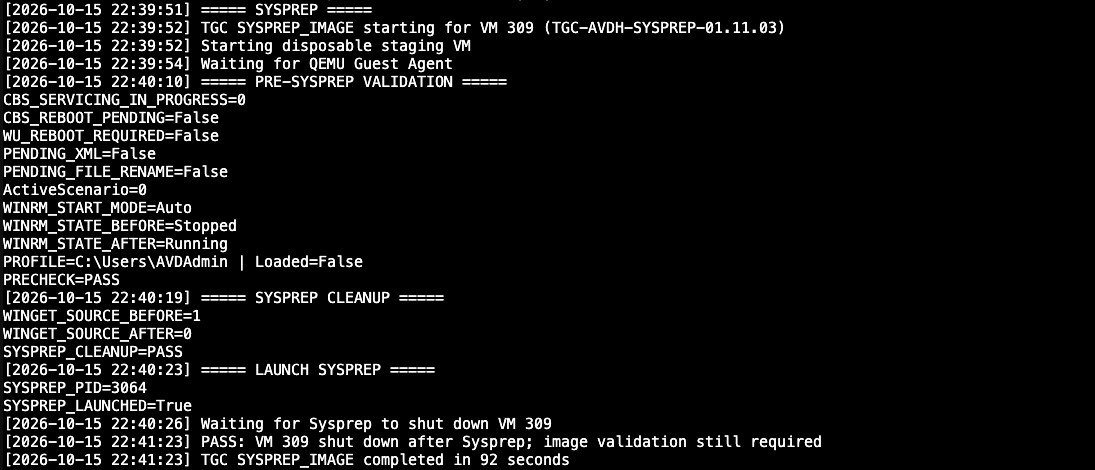
Before generalization, the automation verifies that CBS is idle, reboot indicators are clear, Windows management access is working, and the staging image satisfies the expected prechecks. It also cleans up Winget source state before launching Sysprep.
The worker launches Sysprep and monitors for the expected Windows shutdown, rather than treating the disappearance of guest connectivity as sufficient evidence of completion. In our October 15 build, this stage completed in approximately 92 seconds.
The Sysprep evidence below shows the prerequisite checks, cleanup, launch, and intentional shutdown in one sequence. This establishes generalization was completed, but does not by itself prove that a new clone will initialize.
Creating the Proxmox Template
Once the staging VM was generalized and shut down, the worker moved its configuration to the designated Proxmox node and converted it into a template. Because the virtual disks were already on shared NFS storage, the workflow did not need to copy the entire image to another datastore.
The template retained the operating system, EFI, and TPM disks. Template conversion is only a packaging milestone, however: Proxmox cannot determine whether a newly cloned Windows machine will initialize successfully.
Independent Post-Sysprep Validation
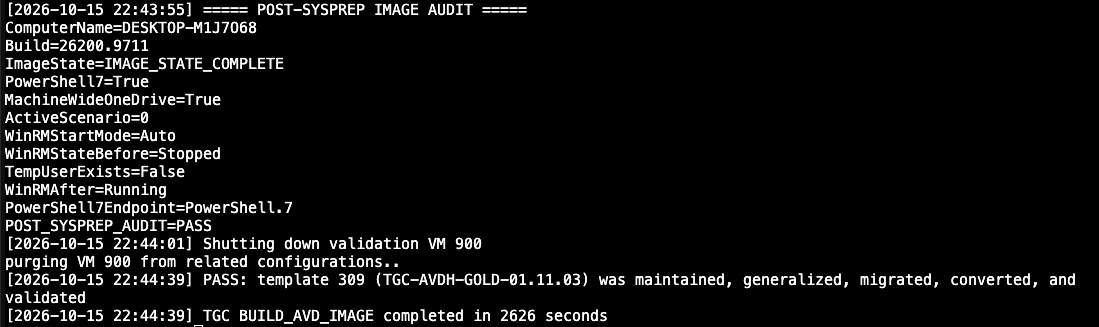
To establish that the template was usable, the worker created a disposable linked validation clone, started it, and waited for Windows to finish its first-boot initialization. The image reached `IMAGE_STATE_COMPLETE`, and the subsequent audit passed.
That audit confirmed build 26200.9711, PowerShell 7, machine-wide OneDrive, the PowerShell 7 remoting endpoint, expected Windows management service behavior, and absence of the temporary maintenance account.
After successfully auditing the validation clone, the worker shut it down and removed it. The generalized template remained available for future automated AVD deployment.
The final evidence is the independent clone audit rather than template conversion alone. The controller returned success only after the validation machine initialized and the required checks passed.
Completing the Image Build
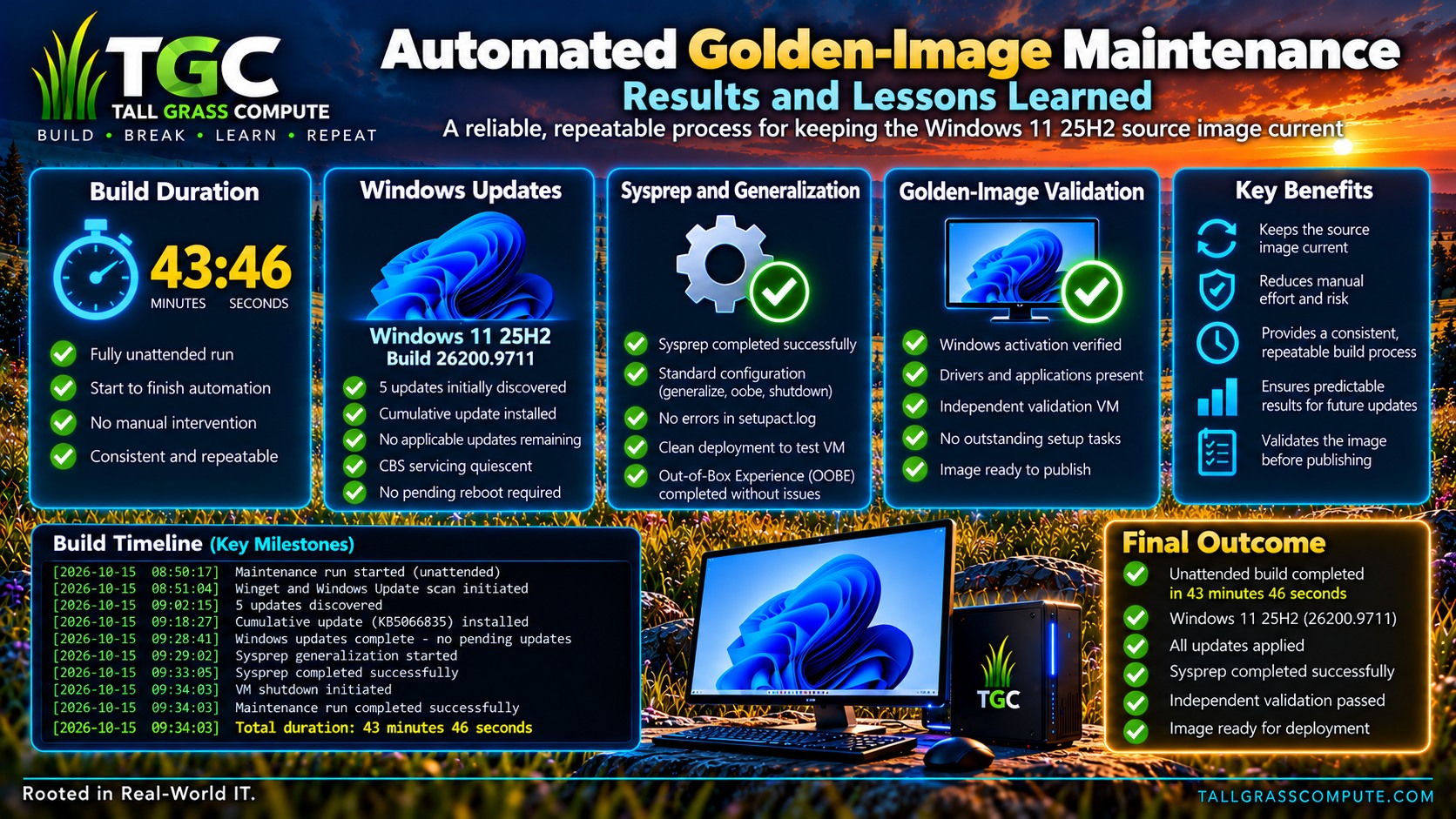
The October 15 workflow finished in 43 minutes and 46 seconds. It maintained Windows, handled servicing reboots, preserved the source, generalized a staging clone, converted the template, and proved that a new Windows machine could initialize from it—without interactive operator intervention during the build.
5. Results and Lessons Learned
The goal was not a script that could install updates. It was a repeatable, unattended workflow that could take an existing Windows 11 image and finish with a generalized, independently validated replacement template. The October 15 build demonstrated that the individual operations could work together as one process.
Verified Build Results
| Validation point | Observed result |
|---|---|
| Application maintenance | Passed; no eligible machine-wide upgrades |
| Windows build | 26200.9457 → 26200.9711 |
| Windows Update convergence | Passed; 0 applicable updates remaining |
| CBS and reboot gates | Clear before generalization |
| Source-image audit | Passed |
| Pre- and post-maintenance snapshots | Completed |
| Sysprep | Passed; expected shutdown |
| Proxmox template conversion | Completed |
| Linked-clone initialization | Passed; IMAGE_STATE_COMPLETE |
| Post-Sysprep audit | Passed |
| Total maintenance build | 43 minutes, 46 seconds |
Lessons from the Automation
Windows Update needs state-based orchestration. Guest availability and installer success do not prove Windows is finished servicing. The worker must observe CBS, pending-restart state, and repeated update scans before allowing Sysprep.
Keep maintenance and generalization separate. A source image that remains in its maintained state is reusable. A separate Sysprep clone allows repeated versioned templates without rebuilding Windows for each cycle.
Template conversion is not image validation. Only a first-boot test of a clone can demonstrate that Windows initializes correctly after generalization. The disposable linked clone provides that additional boundary.
Orchestration matters more than individual scripts. Winget, Windows Update, snapshots, Sysprep, and Proxmox cloning are individually familiar tasks. Reliability comes from validating each transition and handling the states between them.
Closing the Loop with Azure Virtual Desktop
Following the image build, we used the new template with the AVD session-host deployment automation developed in Part 1. The resulting host registered successfully with Azure Virtual Desktop, became available for user sessions, and supported a successful interactive user sign-in.
That final check connected the two halves of the work: the image-maintenance pipeline could deliver a template that our existing deployment pipeline could actually use. We deliberately leave the deployment walkthrough to Part 1.
6. Conclusion — Completing the Image Lifecycle
When we began building our hybrid Azure Virtual Desktop environment on Proxmox, our initial focus was on automating session-host deployment. We wanted a repeatable process that could take an existing Windows 11 golden image and transform it into a working AVD session host without requiring an administrator to perform the deployment manually. That work became the foundation of Part 1.
But automating deployment addressed only one side of the challenge. We still needed a reliable way to maintain the Windows image from which those session hosts were created.
With golden-image maintenance automation in place, we have now connected those two processes. Starting with an existing Windows 11 source, the workflow evaluates application updates, installs applicable Windows updates, manages servicing and reboots, verifies the operating system, and preserves the maintained image.
It then creates a separate staging clone, performs Sysprep, converts the generalized installation into a Proxmox template, and independently confirms that a new Windows machine initializes correctly.
The October 15 build produced a validated template in 43 minutes and 46 seconds, without manual interaction. We subsequently used that template to provision a working Azure Virtual Desktop session host.
What began as a project to automate Azure Virtual Desktop deployment has evolved into a repeatable image lifecycle, supported by our existing Proxmox infrastructure and custom automation.
We can now maintain the image, validate the result, and use it to deploy new session hosts—all through coordinated automation.
The process will undoubtedly continue to evolve as we refine our automation and discover new opportunities for improvement.
And that is exactly what Tall Grass Compute is about.
BUILD · BREAK · LEARN · REPEAT
Comments
Questions, feedback, or something you tried differently? Leave a comment below.